


真のシミュレーション環境
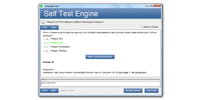
多くのユーザーが最初に試験に参加しているので、上記の試験と試験時間の分布は確かな経験を欠いており、したがって試験場所で混乱しがちであるため、つかむ時間は結局試験を完全に終わらせなかった。 この現象の発生を避けるために、SAP Certified Application Associate - SAP S/4HANA Cloud - Finance Implementation試験問題は各試験シミュレーションテスト環境に対応する製品を持ち、ユーザーはプラットフォーム上の自分のアカウントにログオンし、同時に試験シミュレーションに参加したいものを選択します。C_S4CFI_1905試験問題は自動的にユーザーが実際のテスト環境のシミュレーションテストシステムと同じように提示され、ソフトウェア内蔵のタイマー機能は体系的な達成するために、ユーザーが時間をかけてより良い制御を助けることができます。C_S4CFI_1905テストガイドを使って問題を横から解決するためにユーザーのスピードを向上させるためにも。
コースの簡単な紹介
ほとんどのユーザーにとって、関連する資格試験へのアクセスが最初であるかもしれないので、資格試験に関連するコース内容の多くは複雑で難解です。 これらの無知な初心者によれば、C_S4CFI_1905試験問題は読みやすく、対応する例と同時に説明する一連の基本コースを設定し、SAP Certified Application Associate - SAP S/4HANA Cloud - Finance Implementation試験問題でユーザーが見つけることができるようにしました 実生活と学んだ知識の実際の利用に対応し、ユーザーと記憶の理解を深めました。 シンプルなテキストメッセージは、カラフルなストーリーや写真の美しさを上げるに値する、C_S4CFI_1905テストガイドを初心者のためのゼロの基準に合うようにし、リラックスした幸せな雰囲気の中でより役立つ知識を習得します。 団結の状態を達成するために。
私たちのSAP Certified Application Associate - SAP S/4HANA Cloud - Finance Implementation研究問題は質が高いです。 それでテストの準備をするためのすべての効果的で中心的な習慣があります。 私たちの職業的能力により、C_S4CFI_1905試験問題を編集するのに必要なテストポイントに同意することができます。 それはあなたの難しさを解決するための試験の中心を指しています。 最も重要なメッセージに対するC_S4CFI_1905テストガイドの質問と回答の最小数で、すべてのユーザーが簡単に効率的な学習を行えるようにし、余分な負担を増やさずに、最後にC_S4CFI_1905試験問題にユーザーがすぐに試験合格できるようにします。
簡潔な内容
分析後のすべての種類の試験の暦年に基づくエキスパートによるC_S4CFI_1905試験問題、それは開発動向に焦点を当てた試験論文に適合し、そしてあなたが直面するあらゆる種類の困難を要約し、ユーザーレビューを強調する 知識の内容を習得する必要があります。 そして他の教育プラットフォームとは異なり、SAP Certified Application Associate - SAP S/4HANA Cloud - Finance Implementation試験問題は暦年試験問題の主な内容が長い時間の形式でユーザーの前に表示されていないが、できるだけ簡潔で目立つテキストで概説されていますC_S4CFI_1905テストガイドは、今年の予測トレンドの命題を正確かつ正確に表現しており、トピックデザインのシミュレーションを通して細心の注意を払っています。
SAP C_S4CFI_1905 試験シラバストピック:
| セクション | 比重 | 目標 |
|---|---|---|
| 管理会計 | 15% | - 利益センタ会計 - 内部指図 - 原価センタ会計 |
| 固定資産会計 | 15% | - 固定資産取引
- 減価償却と評価 |
| 決算処理とレポーティング | 15% | - レポート作成ツール - 期末決算処理 - 財務諸表 |
| 他モジュールとの統合およびデータ移行 | 10% | - 他モジュールとの統合 - データ移行ツール - 適用範囲と設定 |
| 買掛金管理および売掛金管理 | 25% | - 売掛金管理プロセス
|
| 財務会計の概要と設定 | 20% | - 総勘定元帳会計
|
SAP Certified Application Associate - SAP S/4HANA Cloud - Finance Implementation 認定 C_S4CFI_1905 試験問題:
1. Your company has started doing business in a new region. You need to quickly migrate some bank data into the SAP S/4HANA Cloud. The Migrate Your Data tool leads you to where the data migration objects are predefined for SAP Best Practices. This tool is used for migrating from SAP or non-SAP systems into the SAP S/4HANA Cloud Editions.
Access the Migrate Your Data tool.
Note: There are 2 correct answers to this question.
A) Choose the Manage Your Solution app and start the Migrate Your Data tool.
B) To close the documentation, choose OK.
C) To display the documentation about the conversion object, choose Show. Purpose, definition, prerequisites and other information about the conversion object is displayed.
D) To add a new Migration Project, choose Create.
2. What is Guided Data Migration?
A) Data migration objects proposed based on the selected business scenarios
B) Evaluate which business processes and which country versions are active in your solution
C) Installed base customers can connect their SAP Business Suite system
D) New customers take advantage of template based approach
E) Execute data migration directly out of "manage your solution h
3. How to configure your solution?
A) The Approve / Reject field is already set to green.
B) Also known as expert configuration
C) Select Post and press Enter to pass the warning.
D) Carried out by SAP service center
4. What is Standard process?
A) Evaluate which business processes and which country versions are active in your solution
B) On the Asset Master Worklist screen, in the filter area, enter the company code 1010 and Asset Class
1100, and choose Go.
C) Adding complimentary processes to eh activated processes
D) Display scope items of all activated solution packages or of certain solution packages
5. How to add a field to the Customer Project group.
Note: There are 3 correct answers to this question.
A) Move your cursor over the Customer Project text so that the crosshairs appear. Right click so that the context menu appears. Select Add Field.
B) From the Available Fields window, select the City checkbox and choose Ok. The City field should now appear beneath the Description box.
C) Move the new field so that it is between the Currency and Description fields.
D) When you have made this change, in the top right of the screen, select Transport.
質問と回答:
| 質問 # 1 正解: A、D | 質問 # 2 正解: A、C、D、E | 質問 # 3 正解: B、D | 質問 # 4 正解: C | 質問 # 5 正解: A、B、C |
 0 お客様のコメント
 0
0
 0
0
 0
0
 0
0
