

合格させるForescout FSCPにはJPNTest提供の試験問題集で2026年02月更新
完全版最新のFSCP問題集、100%カバー率問題と解答があなたをリアル試験で合格させる
Forescout FSCP 認定試験の出題範囲:
| トピック | 出題範囲 |
|---|---|
| トピック 1 |
|
| トピック 2 |
|
| トピック 3 |
|
| トピック 4 |
|
| トピック 5 |
|
| トピック 6 |
|
| トピック 7 |
|
| トピック 8 |
|
質問 # 23
When configuring policies, which of the following statements is true regarding this image?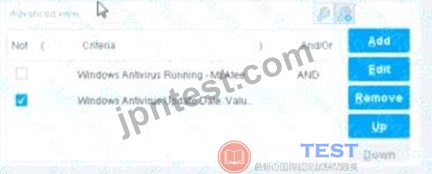
- A. The NOT checkbox means the "Evaluate Irresolvable as" should be set to False
- B. The NOT checkbox means the "Evaluate Irresolvable as" should be set to True
- C. Has no effect on irresolvable hosts
- D. The external NOT does not change the meaning of "evaluate irresolvable as"
- E. Negates the criteria inside the property
正解:E
解説:
The NOT checkbox negates the criteria inside the property. According to the Forescout Administration Guide, when the NOT checkbox is selected on a policy condition criteria, it reverses the logic of that specific criterion evaluation.
Understanding the NOT Operator in Policy Conditions:
In Forescout policy configuration, the NOT operator is a Boolean logic operator that inverts the result of the property evaluation. When you select the NOT checkbox:
* Logical Inversion - The condition is evaluated normally, and then the result is inverted
* Criteria Negation - If a criteria would normally match an endpoint, selecting NOT causes it NOT to match
* Property-Level Operation - The NOT operator applies specifically to that individual property/criterion, not to the entire rule Example of NOT Logic:
Without NOT:
* Condition: "Windows Antivirus Running = True"
* Result: Matches endpoints that HAVE antivirus running
With NOT:
* Condition: "NOT (Windows Antivirus Running = True)"
* Result: Matches endpoints that DO NOT have antivirus running
NOT vs. "Evaluate Irresolvable As":
According to the documentation, the NOT operator and "Evaluate Irresolvable As" are independent settings:
* NOT operator - Negates/inverts the criteria evaluation itself
* "Evaluate Irresolvable As" - Defines what happens when a property CANNOT be resolved (is irresolvable) These serve different purposes:
* NOT determines what value to match
* Evaluate Irresolvable As determines how to handle unresolvable properties Handling Irresolvable Criteria:
According to the administration guide documentation:
"If you do not select the Evaluate irresolvable criteria as option, the criteria is handled as irresolvable and the endpoint does not undergo further analysis." The "Evaluate Irresolvable As" checkbox allows you to define whether an irresolvable property should be treated as True or False when the property value cannot be determined. This is independent of the NOT checkbox.
Why Other Options Are Incorrect:
* A. The NOT checkbox means the "Evaluate Irresolvable as" should be set to True - Incorrect; NOT and Evaluate Irresolvable As are independent settings
* B. The external NOT does not change the meaning of "evaluate irresolvable as" - While technically true that NOT doesn't change the Evaluate Irresolvable setting, the answer doesn't explain what NOT actually does
* C. Has no effect on irresolvable hosts - Incorrect; NOT negates the criterion logic regardless of whether it's resolvable
* E. The NOT checkbox means the "Evaluate Irresolvable as" should be set to False - Incorrect; NOT and Evaluate Irresolvable As are independent Policy Condition Structure:
According to the documentation, a policy condition consists of:
* Property criteria combined with Boolean logic operators
* Individual criterion settings including NOT operator
* Irresolvable handling options that are separate from the NOT operator Referenced Documentation:
* Forescout Administration Guide - Define policy scope
* Forescout eyeSight policy sub-rule advanced options
* Handling Irresolvable Criteria section
* Working with Policy Conditions
質問 # 24
Irresolvable hosts would match the condition. When configuring policies, which of the following statements is true regarding this image?
Select one:
- A. Generates a NOT condition in the sub-rule condition
- B. Has no effect on irresolvable hosts
- C. Modifies the irresolvable condition to TRUE
- D. Negates the criteria outside the property
正解:B
解説:
Based on the image showing "Meets the following criteria" radio button selected (as opposed to "Does not meet the following criteria"), the correct statement is: "Has no effect on irresolvable hosts".
Understanding "Meets the following criteria":
According to the Forescout policy configuration documentation:
When "Meets the following criteria" is selected:
* Normal Evaluation - The condition is evaluated as written
* No Negation - There is NO inversion of logic
* Irresolvable Handling - Separate setting; the "Meets" choice does NOT affect irresolvable handling Irresolvable Hosts - Independent Setting:
According to the policy sub-rule advanced options documentation:
"The 'Meets the following criteria' radio button and the 'Evaluate irresolvable as' checkbox are independent settings."
* "Meets the following criteria" - Controls normal/negated evaluation
* "Evaluate irresolvable as" - Controls how unresolvable properties are treated The selection of "Meets the following criteria" has no specific effect on how irresolvable hosts are handled.
Why Other Options Are Incorrect:
* B. Generates a NOT condition - "Meets" does NOT generate NOT; it's the normal condition
* C. Negates the criteria outside - "Meets" does not negate anything; it's the affirmative option
* D. Modifies irresolvable condition to TRUE - The "Evaluate irresolvable as" setting controls that, not
"Meets"
Referenced Documentation:
* Define policy scope
* Forescout eyeSight policy sub-rule advanced options
* Forescout Platform Policy Sub-Rule Advanced Options
質問 # 25
When using Remote Inspection for Windows, which of the following properties require fsprocsvc.exe interactive scripting?
- A. Windows Service Running
- B. Windows Expected Script Result
- C. User Directory Common Name
- D. Antivirus Running
- E. Update Microsoft Vulnerabilities
正解:B
解説:
Comprehensive and Detailed Explanation From Exact Extract of Forescout Platform Administration and Deployment:
The Windows Expected Script Result property is the correct answer. According to the official Forescout CounterACT Endpoint Module: HPS Inspection Engine Configuration Guide Version 10.8, the fsprocsvc.exe service is required to run interactive scripts for several CounterACT tasks during Remote Inspection operations on Windows endpoints.
The documentation explicitly lists the following Properties requiring the fsprocsvc service (with Remote Inspection, i.e., not via SecureConnector):
* Windows Expected Script Result #
* Device Interfaces
* Number of IP Addresses
* External Devices
* Windows File MD5 Signature
* Windows Is Behind NAT
* Microsoft Vulnerabilities
About fsprocsvc.exe Service:
The fsprocsvc.exe service is a proprietary ForeScout service utility that is downloaded by the HPS Inspection Engine to endpoints. It is used to run interactive scripts for several CounterACT tasks. Key characteristics include:
* Size on disk: Approximately 250KB
* Memory acquired during runtime: 2 MB
* Runs under: System context
* Start type: Automatic
* Inactivity timeout: After 2 hours of inactivity, the service stops automatically
* Communication: Does not open any new network connection. Communication is carried out over Microsoft's SMB/RPC (445/TCP and 139/TCP) with domain credentials authentication Why Other Options Are Incorrect:
* A. User Directory Common Name - This property is derived from User Directory plugin queries and does not require fsprocsvc interactive scripting
* B. Update Microsoft Vulnerabilities - This is an action, not a property. While Microsoft Vulnerabilities property does require fsprocsvc, "Update" is not the property name listed
* D. Antivirus Running - This is a basic WMI-based property that does not require interactive scripting via fsprocsvc
* E. Windows Service Running - This is a basic property that can be determined through WMI queries without requiring fsprocsvc interactive scripting Interactive Scripts Requirement:
According to the HPS Inspection Engine Configuration Guide, WMI does not support interactive scripts on all Windows endpoints. When WMI is used for Remote Inspection, CounterACT uses the fsprocsvc service to run interactive scripts on endpoints that require them. The Windows Expected Script Result property specifically requires running a custom script on the endpoint, which necessitates the fsprocsvc service for proper execution.
Referenced Documentation:
* Forescout CounterACT Endpoint Module: HPS Inspection Engine Configuration Guide Version 10.8
* Section: "About fsprocsvc.exe" and "Properties requiring the service (With remote inspection, i.e. not via SecureConnector)"
質問 # 26
Which of the following are true about the comments field of the CounterACT database? (Choose two)
- A. It can be edited manually by a right click administrator action, or it can be edited in policy by using the action "Run Script on Windows"
- B. Endpoints may have multiple comments assigned to them
- C. It cannot be edited manually by a right click administrator action, it can only be edited in policy by using the action "Run Script on CounterACT"
- D. Endpoints may have exactly one comment assigned to them
- E. It can be edited manually by a right click administrator action, or it can be edited in policy by using the action "Run Script on CounterACT"
正解:B、E
解説:
Comprehensive and Detailed Explanation From Exact Extract of Forescout Platform Administration and Deployment:
According to the Forescout Administration Guide - Device Information Properties documentation, the correct statements about the comments field are: Endpoints may have multiple comments assigned to them (A) and it can be edited manually by a right click administrator action, or it can be edited in policy by using the action
"Run Script on CounterACT" (C).
Comments Field Overview:
According to the Device Information Properties documentation:
"(Right-click an endpoint in the Detections pane to add a comment. The comment is retained for the life of the endpoint in the Forescout Console.)" Multiple Comments Support:
According to the ForeScout Administration Guide:
Endpoints support multiple comments that can be added over time:
* Manual Comments - Administrators can right-click an endpoint and add comments
* Policy-Generated Comments - Policies can automatically add comments when conditions are met
* Cumulative - Multiple comments are retained and displayed together
* Persistent - Comments are retained for the life of the endpoint
Manual Comments via Right-Click:
According to the documentation:
Administrators can manually edit the comments field by:
* Right-clicking on an endpoint in the Detections pane
* Selecting "Add comment" or "Edit comment" option
* Entering the comment text
* Saving the comment
This manual method is readily available and frequently used for operational notes.
Policy-Based Comments via "Run Script on CounterACT":
According to the Administration Guide:
Policies can also edit the comments field using the "Run Script on CounterACT" action:
* Create or edit a policy
* Add the "Run Script on CounterACT" action
* The script can modify the Comments host property
* When the policy condition is met, the script runs and updates the comment field Why Other Options Are Incorrect:
* B. Cannot be edited manually...only via Run Script on CounterACT - Incorrect; manual right-click editing is explicitly supported
* D. Endpoints may have exactly one comment - Incorrect; multiple comments are supported
* E. Can be edited...by using action "Run Script on Windows" - Incorrect; the action is "Run Script on CounterACT," not "Run Script on Windows" Comments Field Characteristics:
According to the documentation:
The Comments field:
* Supports Multiple Entries - More than one comment can be added
* Manually Editable - Right-click administrative action available
* Policy Editable - "Run Script on CounterACT" action can modify it
* Persistent - Retained for the life of the endpoint
* Searchable - Comments can be used in policy conditions
* Audit Trail - Provides documentation of endpoint history
Usage Examples:
According to the Administration Guide:
Manual Comments:
* "Device moved to Building C - 2024-10-15"
* "User reported software issue"
* "Awaiting quarantine release approval"
Policy-Generated Comments:
* Vulnerability compliance policy: "Failed patch compliance check"
* Security policy: "Detected unauthorized application"
* Remediation policy: "Scheduled for antivirus update"
Multiple such comments can accumulate on a single endpoint over time.
Referenced Documentation:
* Forescout Administration Guide - Device Information Properties
* ForeScout CounterACT Administration Guide - Comments field section
質問 # 27
Which of the following is the SMB protocol version required to manage Windows XP or Windows Vista endpoints?
- A. SMB V2.0
- B. SMB is not required for XP or Vista
- C. SMB V3.1.1
- D. SMB V1.0
- E. SMB V3.0
正解:D
解説:
Comprehensive and Detailed Explanation From Exact Extract of Forescout Platform Administration and Deployment:
According to the Forescout HPS Inspection Engine Configuration Guide and Microsoft SMB Protocol documentation, the SMB protocol version required to manage Windows XP or Windows Vista endpoints is SMB V1.0.
SMB Version Timeline:
According to the Microsoft documentation and Forescout requirements:
Windows Version
SMB Support
Windows XP
SMB 1.0 only
Windows Vista
SMB 1.0 and SMB 2.0
Windows 7
SMB 1.0, SMB 2.0, and SMB 2.1
Windows 8/Server 2012
SMB 2.0, SMB 2.1, and SMB 3.0
Windows 10
SMB 2.1 and SMB 3.x
Windows XP and Vista SMB Requirements:
According to Forescout documentation:
The documentation explicitly states:
"When you require SMB signing, Remote Inspection can no longer be used to manage endpoints that cannot work with SMB signing, for example: Old Windows XP/Server 2003 systems" This indicates that Windows XP requires SMB support, specifically SMB 1.0, which doesn't support modern SMB signing requirements.
SMB Version Negotiation:
According to the official documentation:
When a Forescout CounterACT appliance connects to an endpoint:
* Version Negotiation - Both client and server advertise their supported SMB versions
* Highest Common Version Selected - The highest version supported by BOTH is used
* Fallback Behavior - If SMB 2.0 is available on Vista but not supported by CounterACT, it falls back to SMB 1.0 For Windows XP (SMB 1.0 only) and Windows Vista (SMB 1.0/2.0):
* Minimum Required: SMB 1.0
* Maximum Supported: SMB 2.0 (Vista only)
Port Requirements for SMB 1.0:
According to the Forescout documentation:
For Windows XP and Vista endpoints using SMB 1.0:
text
Port 139/TCP must be available
(Port 445/TCP is used for Windows 7 and above)
Historical Context:
According to the documentation:
* SMB 1.0 was the original protocol used by Windows 2000, NT, and earlier versions
* Windows Vista SP1 and Windows Server 2008 introduced SMB 2.0
* SMB 1.0 is considered legacy and insecure (no encryption, subject to security vulnerabilities)
* Microsoft recommends disabling SMB 1.0 in modern networks
However, for legacy Windows XP and early Vista systems, SMB 1.0 is the only option.
Why Other Options Are Incorrect:
* A. SMB V3.1.1 - This is the latest version, introduced with Windows Server 2016 and Windows 10; not supported on XP or Vista
* C. SMB is not required for XP or Vista - Incorrect; SMB is essential for Windows manageability and script execution
* D. SMB V2.0 - While Vista supports SMB 2.0, Windows XP does NOT; only SMB 1.0 works on both
* E. SMB V3.0 - This requires Windows 8/Server 2012 or later; not supported on XP or Vista Legacy Endpoint Management Considerations:
According to the documentation:
For legacy endpoints requiring SMB 1.0:
* Cannot require SMB signing (not supported in SMB 1.0)
* Must allow unencrypted SMB communication
* Should be isolated on network segments with security controls
* Represents security risk due to SMB 1.0 vulnerabilities
Referenced Documentation:
* Forescout HPS Inspection Engine - About SMB documentation
* Operational Requirements - Port requirements
* Microsoft - SMB Protocol Versions and Requirements
* Microsoft - Detect, Enable, and Disable SMBv1, SMBv2, and SMBv3 in Windows
質問 # 28
Why would the patch delivery optimization mechanism used for Windows 10 updates be a potential security concern?
- A. CounterACT cannot initiate Windows updates for Windows 10 devices
- B. It always uses a peer-to-peer file sharing protocol
- C. It uses a peer-to-peer file sharing protocol by default
- D. It can be configured to use a peer-to-peer file sharing protocol
- E. The registry DWORD controlling this behavior cannot be changed
正解:D
解説:
Comprehensive and Detailed Explanation From Exact Extract of Forescout Platform Administration and Deployment:
According to the Windows Update Delivery Optimization documentation and security analysis, the potential security concern with patch delivery optimization for Windows 10 updates is that it CAN BE CONFIGURED to use a peer-to-peer file sharing protocol. While the feature includes security mechanisms like cryptographic signing, the capability to enable P2P sharing does create potential security concerns depending on the configuration.
Windows Update Delivery Optimization Overview:
According to the Windows Delivery Optimization documentation:
"Windows Update Delivery Optimization is a feature in Microsoft's Windows designed to improve the efficiency of downloading and distributing updates. Instead of each device independently downloading updates from Microsoft's servers, Update Delivery Optimization allows devices to share update files with each other, either within a local network or over the internet. This peer-to-peer (p2p) approach reduces bandwidth consumption and accelerates the update process." Configuration Flexibility:
According to the documentation:
The P2P feature is configurable, not mandated:
* Default Setting - By default, Delivery Optimization is enabled for local network sharing
* Configurable Options:
* PCs on my local network only (safer)
* PCs on my local network and the internet (broader sharing, higher risk)
* Disabled entirely
Security Concerns Related to P2P Configuration:
According to the security analysis:
When P2P is enabled, potential concerns include:
* Network Isolation Risks - In firewalled or segmented networks, P2P discovery can expose endpoints
* Bandwidth Consumption - Improperly configured P2P can saturate network resources
* Peer Discovery Vulnerabilities - Devices must discover each other, potentially exposing endpoints
* Internet-based Sharing Risks - When "internet peers" are enabled, updates are shared across the internet
* Privacy Implications - Devices communicating for update sharing may leak information Cryptographic Protection Does NOT Eliminate Configuration Risk:
According to the documentation:
"While Update Delivery Optimization ensures that all update files are cryptographically signed and verified before installation, some organizations may still be concerned about allowing peer-to-peer data sharing." While the updates themselves are protected, the act of enabling P2P configuration creates the security concern.
Why Other Options Are Incorrect:
* B. CounterACT cannot initiate Windows updates for Windows 10 - Incorrect; CounterACT can initiate Windows updates; this is not the security concern
* C. It uses peer-to-peer by default - Incorrect; while enabled by default for local networks, internet P2P sharing requires explicit configuration
* D. The registry DWORD cannot be changed - Incorrect; the DO modes registry value (DODownloadMode) CAN be changed via GPO or registry
* E. It always uses peer-to-peer - Incorrect; P2P is configurable, not mandatory; organizations can disable it entirely Registry DWORD Configuration Options:
According to the Windows documentation:
The DODownloadMode DWORD value can be configured to:
* 0 = HTTP only, no peering (addresses security concern)
* 1 = HTTP blended with local peering (moderate risk)
* 3 = HTTP blended with internet peering (higher risk - the security concern)
* 99 = Simple download mode
This demonstrates that P2P can be configured, which is the security concern mentioned in the question.
Referenced Documentation:
* What is Windows Update Delivery Optimization - Scalefusion Blog
* Windows Delivery Optimization: Risks & Challenges - LinkedIn Article
* Introduction to Windows Update Delivery Optimization - Sygnia Analysis
質問 # 29
Which of the following switch actions cannot both be used concurrently on the same switch?
- A. Access Port ACL & Endpoint Address ACL
- B. Switch Block & Assign to VLAN
- C. Endpoint Address ACL & Assign to VLAN
- D. Access Port ACL & Assign to VLAN
- E. Access Port ACL & Switch Block
正解:A
解説:
Comprehensive and Detailed Explanation From Exact Extract of Forescout Platform Administration and Deployment:
According to the Forescout Switch Plugin Configuration Guide, Access Port ACL and Endpoint Address ACL cannot both be used concurrently on the same endpoint. These two actions are mutually exclusive because they both apply ACL rules to control traffic, but through different mechanisms, and attempting to apply both simultaneously creates a conflict.
Switch Restrict Actions Overview:
The Forescout Switch Plugin provides several restrict actions that can be applied to endpoints:
* Access Port ACL - Applies an operator-defined ACL to the access port of an endpoint
* Endpoint Address ACL - Applies an operator-defined ACL based on the endpoint's address (MAC or IP)
* Assign to VLAN - Assigns the endpoint to a specific VLAN
* Switch Block - Completely isolates endpoints by turning off their switch port Action Compatibility Rules:
According to the Switch Plugin Configuration Guide:
* Endpoint Address ACL vs Access Port ACL - These CANNOT be used together on the same endpoint because:
* Both actions modify switch filtering rules
* Both actions can conflict when applied simultaneously
* The Switch Plugin cannot determine priority between conflicting ACL configurations
* Applying both would create ambiguous filtering logic on the switch
Actions That CAN Be Used Together:
* Access Port ACL + Assign to VLAN -#Can be used concurrently
* Endpoint Address ACL + Assign to VLAN -#Can be used concurrently
* Switch Block + Assign to VLAN - This is semantically redundant (blocking takes precedence) but is allowed
* Access Port ACL + Switch Block -#Can be used concurrently (though Block takes precedence) Why Other Options Are Incorrect:
* A. Access Port ACL & Switch Block - These CAN be used concurrently; Switch Block would take precedence
* B. Switch Block & Assign to VLAN - These CAN be used concurrently (though redundant)
* C. Endpoint Address ACL & Assign to VLAN - These CAN be used concurrently
* E. Access Port ACL & Assign to VLAN - These CAN be used concurrently; they work on different aspects of port management ACL Action Definition:
According to the documentation:
* Access Port ACL - "Use the Access Port ACL action to define an ACL that addresses one or more than one access control scenario, which is then applied to an endpoint's switch port"
* Endpoint Address ACL - "Use the Endpoint Address ACL action to apply an operator-defined ACL, addressing one or more than one access control scenario, which is applied to an endpoint's address" Referenced Documentation:
* Forescout CounterACT Switch Plugin Configuration Guide Version 8.12
* Switch Plugin Configuration Guide v8.14.2
* Switch Restrict Actions documentation
質問 # 30
When using the "Assign to VLAN action," why might it be useful to have a policy to record the original VLAN?
Select one:
- A. Since CounterACT reads the startup config to find the original VLAN, network administrators making changes to switch running configs could overwrite this VLAN information
- B. Since CounterACT reads the startup config to find the original VLAN, network administrators saving configuration changes to switches could overwrite this VLAN information
- C. Since CounterACT reads the running config to find the original VLAN, any changes to switch running configs could overwrite this VLAN information
- D. Since CounterACT reads the running config to find the original VLAN, network administrators saving configuration changes to switches could overwrite this VLAN information
- E. Since CounterACT reads the running config to find the original VLAN, network administrators making changes to switch running configs could overwrite this VLAN information
正解:C
解説:
According to the Forescout Switch Plugin documentation, the correct answer is: "Since CounterACT reads the running config to find the original VLAN, any changes to switch running configs could overwrite this VLAN information".
Why Recording Original VLAN is Important:
According to the documentation:
When CounterACT assigns an endpoint to a quarantine VLAN:
* Reading Original VLAN - CounterACT reads the switch running configuration to determine the original VLAN
* Temporary Change - The endpoint is moved to the quarantine VLAN
* Restoration Issue - If network administrators save configuration changes to the running config, CounterACT's reference to the original VLAN may be overwritten
* Solution - Recording the original VLAN in a policy ensures you have a backup reference Why Option D is the Most Accurate:
Option D states the key issue clearly: "any changes to switch running configs could overwrite this VLAN information." This is the most comprehensive and accurate statement because it acknowledges that ANY changes (not just those by administrators specifically) could cause the issue.
質問 # 31
Which field in the User Directory plugin should be configured for Active Directory subdomains?
- A. Address
- B. Domain Aliases
- C. Parent Groups
- D. Replicas
- E. DNS Detection
正解:B
解説:
Comprehensive and Detailed Explanation From Exact Extract of Forescout Platform Administration and Deployment:
According to the Forescout User Directory Plugin Configuration Guide - Microsoft Active Directory Server Settings, the field that should be configured for Active Directory subdomains is "Domain Aliases".
Domain Aliases for Subdomains:
According to the Microsoft Active Directory Server Settings documentation:
"Configure the following additional server settings in the Directory and Additional Domain Aliases sections:
Domain Aliases - Configure additional domain names that users can use to log in, such as subdomains." Purpose of Domain Aliases:
According to the documentation:
Domain Aliases are used to specify:
* Subdomains - Alternative domain names like subdomain.company.com
* Alternative Domain Names - Other domain name variations
* User Login Options - Additional domains users can use to authenticate
* Alias Resolution - Maps aliases to the primary domain
Example Configuration:
For an organization with the primary domain company.com and subdomain accounts.company.com:
* Domain Field - Set to: company.com
* Domain Aliases Field - Add: accounts.company.com
This allows users from either domain to authenticate successfully.
Why Other Options Are Incorrect:
* A. Replicas - Replicas configure redundant User Directory servers, not subdomains
* B. Address - Address field specifies the server IP/FQDN, not domain aliases
* C. Parent Groups - Parent Groups relate to group hierarchy, not domain subdomains
* E. DNS Detection - DNS Detection is not a User Directory configuration field Additional Domain Configuration:
According to the documentation:
text
Primary Configuration:
## Domain: company.com
## Domain Aliases: accounts.company.com
# services.company.com
# mail.company.com
## Port: 636 (default)
Referenced Documentation:
* Microsoft Active Directory Server Settings
* Define User Directory Servers - Domain Aliases section
質問 # 32
Which of the following is a characteristic of a centralized deployment?
- A. Checking Microsoft vulnerabilities at remote site may have significant bandwidth impact
- B. Every site has an appliance
- C. Deployed as a Layer-2 channel
- D. Is optimal for threat protection
- E. Provides enhanced IPS and HTTP actions
正解:A
解説:
Comprehensive and Detailed Explanation From Exact Extract of Forescout Platform Administration and Deployment:
According to the Forescout Installation Guide and Windows Vulnerability DB Configuration Guide, a characteristic of a centralized deployment is that checking Microsoft vulnerabilities at a remote site may have significant bandwidth impact.
Centralized vs. Distributed Deployment Models:
In a centralized deployment, Forescout uses a central location with Enterprise Manager and Appliances, while in a distributed deployment, appliances are placed at multiple locations.
Bandwidth Considerations in Centralized Deployments:
According to the Windows Vulnerability DB Configuration Guide:
"Minimize Bandwidth During Vulnerability File Download: You can minimize bandwidth usage during Microsoft vulnerability file download processes by limiting the number of concurrent HTTP downloads to endpoints. The default is 20 endpoints simultaneously." The documentation further states:
"To customize: Select Tools>Options>HPS Inspection Engine>Windows Updates tab. Define a value in the Maximum Concurrent Vulnerability DB File HTTP Uploads field." This configuration option exists specifically because checking Microsoft vulnerabilities (downloading vulnerability definition files to endpoints and having endpoints upload compliance data back) can consume significant bandwidth.
Why Centralized Deployments Magnify Bandwidth Impact:
According to the Installation Guide:
In a centralized deployment:
* All vulnerability checking traffic flows through a single central location
* Multiple endpoints simultaneously download large vulnerability database files
* All endpoints upload vulnerability compliance data back to central appliances
* All this traffic concentrates at the central site
In contrast, in a distributed deployment where appliances exist at remote sites, local endpoints can communicate directly with the local appliance without impacting the central WAN link.
Bandwidth Management for Centralized Deployments:
According to the documentation:
To address the bandwidth impact in centralized deployments:
* Limit concurrent HTTP uploads for vulnerability DB files
* Schedule vulnerability checks during off-peak hours
* Carefully plan deployment architecture considering remote site bandwidth Why Other Options Are Incorrect:
* B. Provides enhanced IPS and HTTP actions - This is not specific to centralized deployments; both deployment models can use IPS and HTTP actions
* C. Is optimal for threat protection - Neither deployment model is necessarily optimal; choice depends on specific requirements
* D. Deployed as a Layer-2 channel - Deployment mode (Layer-2 vs. Layer-3) is independent of centralized vs. distributed architecture
* E. Every site has an appliance - This describes a distributed deployment, not a centralized one. In centralized deployments, appliances are concentrated at a central site Centralized Deployment Characteristics:
According to the documentation:
* Appliances are typically located at a central site
* Remote sites connect through WAN links
* Reduced operational complexity with centralized management
* Higher bandwidth requirements on WAN for vulnerability checking and policy enforcement
* Requires careful bandwidth planning for remote vulnerability assessment Referenced Documentation:
* Forescout Platform Installation Guide - Network Deployment Requirements
* Windows Vulnerability DB Configuration Guide - Minimize Bandwidth During Vulnerability File Download
* Forescout Platform Cloud Strategies and Best Practices - Bandwidth considerations
質問 # 33
Which of the following does NOT need to be checked when you are verifying correct switch plugin configuration?
- A. The Switch plugin is running
- B. Each switch is assigned to the correct appliance
- C. Correct switch management credentials are configured for each switch
- D. IP address ranges are assigned to the correct appliance
- E. Each switch passes the plugin test
正解:D
解説:
Comprehensive and Detailed Explanation From Exact Extract of Forescout Platform Administration and Deployment:
According to the Forescout Switch Plugin Configuration Guide, when verifying correct switch plugin configuration, you do NOT need to check: "IP address ranges are assigned to the correct appliance". This setting is network/appliance configuration, not switch plugin-specific configuration.
Switch Plugin Configuration Verification Checklist:
According to the Switch Plugin documentation:
When verifying switch plugin configuration, you MUST check:
* A. The Switch plugin is running #
* Plugin status must be active
* Verify in plugin management interface
* B. Correct switch management credentials #
* SSH/CLI credentials configured
* SNMP credentials (v1/v2/v3) configured
* Must have appropriate permissions
* D. Each switch passes the plugin test #
* Use plugin test function to verify connectivity
* Confirms credentials and permissions work
* Validates communication protocols
* E. Each switch is assigned to the correct appliance #
* Switch must be assigned to managing appliance
* Critical for multi-appliance deployments
* Ensures proper VLAN management traffic routing
Why C is NOT Required:
According to the documentation:
IP address range assignment (segment assignment) is:
* Part of appliance channel/segment configuration
* NOT part of switch plugin-specific configuration
* Handled at appliance level, not plugin level
* Related to appliance management, not switch management
Switch Plugin vs. Appliance Configuration:
According to the configuration guide:
Item
Switch Plugin Config
Appliance Config
Plugin Running
#Yes
N/A
Switch Credentials
#Yes
N/A
Plugin Test
#Yes
N/A
Switch Assignment
#Yes
N/A
IP Address Ranges
#No
#Yes
Referenced Documentation:
* CounterACT Switch Plugin Configuration Guide v8.12
* Switch Configuration Parameters
* Permissions Configuration - Switch
* Configuring Switches in the Switch Plugin
質問 # 34
When using MS-WMI for Remote inspection, which of the following properties should be used to test for Windows Manageability?
- A. Windows Manageable Domain
- B. MS-WMI Reachable
- C. MS-RRP Reachable
- D. Windows Manageable Domain (Current)
- E. MS-SMB Reachable
正解:B
解説:
Comprehensive and Detailed Explanation From Exact Extract of Forescout Platform Administration and Deployment:
According to the Forescout HPS Inspection Engine Configuration Guide Version 10.8, when using MS-WMI for Remote Inspection, MS-WMI Reachable property should be used to test for Windows Manageability.
MS-WMI Reachable Property:
According to the documentation:
"MS-WMI Reachable: Indicates whether Windows Management Instrumentation can be used for Remote Inspection tasks on the endpoint." This Boolean property specifically tests whether WMI services are available and reachable on a Windows endpoint.
Remote Inspection Reachability Properties:
According to the HPS Inspection Engine guide:
Three reachability properties are available for detecting services on endpoints:
* MS-RRP Reachable - Indicates whether Remote Registry Protocol is available
* MS-SMB Reachable - Indicates whether Server Message Block protocol is available
* MS-WMI Reachable - Indicates whether Windows Management Instrumentation is available (THIS IS FOR MS-WMI) How to Use MS-WMI Reachable:
According to the documentation:
When Remote Inspection method is set to "Using MS-WMI":
* Check the MS-WMI Reachable property value
* If True - WMI services are running and available for Remote Inspection
* If False - WMI services are not available; fallback methods or troubleshooting required Property Characteristics:
According to the documentation:
"These properties do not have an Irresolvable state. When HPS Inspection Engine cannot establish connection with the service, the property value is False." This means:
* Always returns True or False (never irresolvable)
* False indicates the service is not reachable
* No need for "Evaluate Irresolvable Criteria" option
Why Other Options Are Incorrect:
* A. Windows Manageable Domain (Current) - This is not the specific property for testing MS-WMI capability
* B. MS-RRP Reachable - This tests Remote Registry Protocol, not WMI
* D. MS-SMB Reachable - This tests Server Message Block protocol, not WMI
* E. Windows Manageable Domain - General manageability property, not specific to WMI testing Remote Inspection Troubleshooting:
According to the documentation:
When troubleshooting Remote Inspection with MS-WMI:
* First verify MS-WMI Reachable = True
* Check required WMI services:
* Server
* Windows Management Instrumentation (WMI)
* Verify port 135/TCP is available
* If MS-WMI Reachable = False, check firewall and WMI configuration
Referenced Documentation:
* CounterACT Endpoint Module HPS Inspection Engine Configuration Guide v10.8
* Detecting Services Available on Endpoints
質問 # 35
Which of the following is an example of a remediation action?
- A. Switch port block
- B. HTTP login
- C. Start Antivirus update
- D. Start SecureConnector
- E. Assign to VLAN
正解:C
解説:
Comprehensive and Detailed Explanation From Exact Extract of Forescout Platform Administration and Deployment:
According to the Forescout Administration Guide - Remediate Actions, "Start Antivirus update" is an example of a remediation action.
Remediation Actions Definition:
According to the Remediate Actions documentation:
"Remediation actions are actions that address compliance issues by taking corrective measures on endpoints.
These actions fix, update, or improve the security posture of non-compliant endpoints." Examples of Remediation Actions:
According to the documentation:
Remediation actions include:
* Start Antivirus Update - Updates antivirus definitions on the endpoint
* Update Antivirus - Updates antivirus software
* Start Windows Updates - Initiates Windows security patches
* Enable Firewall - Activates Windows firewall
* Disable USB - Restricts USB access
Why Other Options Are Incorrect:
* A. Start SecureConnector - This is a deployment action, not remediation
* C. Assign to VLAN - This is a containment/isolation action (Switch Remediate Action), not a remediation action
* D. Switch port block - This is a containment/restrict action (Switch Restrict Action), not remediation
* E. HTTP login - This is authentication, not a remediation action
Action Categories:
According to the documentation:
Category
Examples
Purpose
Remediate Actions
Start Antivirus, Windows Updates, Enable Firewall
Fix compliance issues
Restrict Actions
Switch Block, Port Block, ACL
Contain threats
Remediate Actions (Switch)
Assign to VLAN (quarantine)
Move to isolated VLAN
Deployment
Start SecureConnector
Deploy agents
Referenced Documentation:
* Remediate Actions
* Switch Remediate Actions
* Switch Restrict Actions
質問 # 36
When configuring a Send Email action to notify CounterACT administrators, how do you add endpoint specific host information to the message?
- A. Edit the "Message to Email Recipient" Field of the Send Email action Parameters tab, then click 'Tag" to add the desired property value.
- B. Create criteria in sub-rules to detect the desired specific host information. The "Send Email" action will send this information to the CounterACT administrator.
- C. Edit the Options > General > Mail settings and click "Tag" to add the desired property values.
- D. It is not possible to add specific host information for detected endpoints.
- E. Edit the "Message to Email Recipient" Field of the Send Email action Parameters tab, then click 'Tag" to add the desired keyword tag.
正解:A
解説:
Comprehensive and Detailed Explanation From Exact Extract of Forescout Platform Administration and Deployment:
According to the Forescout Administration Guide - Send Email action documentation, to add endpoint- specific host information to a Send Email notification, you should "Edit the 'Message to Email Recipient' Field of the Send Email action Parameters tab, then click 'Tag' to add the desired property value".
Property Tags in Send Email Action:
According to the Property Tags documentation:
"Property tags insert endpoint values into condition or action fields, and are replaced by the actual endpoint property value when the field is evaluated." Property tags allow dynamic insertion of endpoint-specific data into email messages.
How to Add Property Tags to Email:
According to the documentation:
* Edit Send Email Action - Open the Send Email action configuration
* Navigate to Parameters Tab - Select the Parameters tab
* Edit Message Field - Edit the "Message to Email Recipient" field
* Click Tag Button - Select the "Tag" button/option
* Choose Property - Select the endpoint property to insert (e.g., IP address, OS, etc.)
* Confirm - The property tag is inserted into the message
Example Email Message with Property Tags:
According to the More Action Tools documentation:
text
Example message:
"Endpoint [IP.Address] with hostname [IP.Hostname]
has failed compliance check for operating system [OS]."
When evaluated:
"Endpoint 192.168.1.50 with hostname WORKPC-01
has failed compliance check for operating system Windows 10."
Available Properties for Tags:
According to the documentation:
Property tags can reference:
* IP Address
* MAC Address
* Hostname
* Operating System
* Device Function
* User information
* Custom endpoint properties
Why Other Options Are Incorrect:
* A. Create criteria in sub-rules - Sub-rules don't send email; they're for conditional logic
* C. Edit Options > General > Mail settings - This is for global email configuration, not message customization
* D. It is not possible - Incorrect; property tags specifically enable this functionality
* E. "Keyword tag" - The feature uses "property tags" or "tags," not "keyword tags" Referenced Documentation:
* Send Email action
* Property Tags
* More Action Tools - Property tags section
質問 # 37
When an admission event is seen, how are main rules and sub-rules processed?
- A. Main rules process concurrently, sub-rules process in parallel.
- B. Main rules process sequentially, sub-rules process concurrently.
- C. Main rules process sequentially, sub-rules process in parallel.
- D. Main rules process in parallel, sub-rules process concurrently.
- E. Main rules process concurrently, sub-rules process sequentially.
正解:E
解説:
Comprehensive and Detailed Explanation From Exact Extract of Forescout Platform Administration and Deployment:
According to the Forescout Administration Guide - Policy Processing, when an admission event occurs, "Main rules process concurrently, sub-rules process sequentially".
Policy Processing Flow:
According to the Main Rule Advanced Options documentation:
When an admission event triggers policy evaluation:
* Main Rules - Process concurrently/in parallel
* All main rules are evaluated simultaneously
* No ordering or sequencing
* Each main rule evaluates independently
* Sub-Rules - Process sequentially/in order
* Sub-rules within each main rule execute one after another
* First match wins - stops evaluating subsequent sub-rules
* Order matters for sub-rule execution
Main Rule Concurrent Processing:
According to the documentation:
"Main rules are evaluated independently and concurrently. Multiple main rules can be processed simultaneously for the same endpoint." Sub-Rule Sequential Processing:
According to the Defining Policy Sub-Rules documentation:
"Sub-rules are evaluated sequentially in the order defined. When an endpoint matches a sub-rule, that sub- rule's actions are taken and subsequent sub-rules are not evaluated." Example Processing:
When admission event triggers:
text
CONCURRENT (Main Rules):
## Main Rule 1 evaluation # Sub-rule processing (sequential)
## Main Rule 2 evaluation # Sub-rule processing (sequential)
## Main Rule 3 evaluation # Sub-rule processing (sequential)
(All main rules evaluate at the same time)
Why Other Options Are Incorrect:
* B. Parallel/Concurrently - "Concurrent" and "parallel" mean the same thing; sub-rules don't process concurrently
* C. Concurrent/Parallel - Sub-rules don't process in parallel; they're sequential
* D. Sequential/Concurrently - Main rules don't process sequentially; they're concurrent
* E. Sequential/Parallel - Main rules don't process sequentially; they're concurrent Referenced Documentation:
* Main Rule Advanced Options
* Defining Policy Sub-Rules
質問 # 38
What should you do first when preparing for an upgrade to a new CounterACT version?
- A. Upgrading an appliance is done through Options/Modules.
- B. Upgrade only the modules compatible with the version you are installing.
- C. Upgrade the members first before upgrading the EM.
- D. Consult the CounterACT Release Notes for the appropriate version
- E. From the appliance CLI, fstool upgrade /tmp/counteract-v8.0.1.fsp
正解:D
解説:
Comprehensive and Detailed Explanation From Exact Extract of Forescout Platform Administration and Deployment:
According to the Forescout Upgrade Guides for multiple versions, the first thing you should do when preparing for an upgrade to a new CounterACT version is consult the CounterACT Release Notes for the appropriate version.
Release Notes as First Step:
According to the official documentation:
"Review the Forescout Release Notes for important information before performing any upgrade." The documentation emphasizes this as a critical first step before any other upgrade activities.
What Release Notes Contain:
According to the upgrade guidance:
The Release Notes provide essential information including:
* Upgrade Paths - Which versions you can upgrade from and to
* Pre-Upgrade Requirements - System requirements and prerequisites
* End-of-Life Products - Products that must be uninstalled before upgrade
* Non-Supported Products - Products not compatible with the new version
* Module/Plugin Dependencies - Version compatibility requirements
* Known Issues - Potential problems and workarounds
* Upgrade Procedures - Step-by-step instructions
* Rollback Information - How to revert if needed
Critical Pre-Upgrade Information:
According to the Release Notes guidance:
"The upgrade process does not continue when end-of-life products are detected." Release Notes list:
* End-of-Life (EOL) Products - Must be uninstalled before upgrade
* Non-Supported Products - Must be uninstalled before upgrade
* Plugin Version Compatibility - Which plugin versions work with the new Forescout version Upgrade Order vs. Release Notes Review:
According to the documentation:
While the order of upgrade (EM first, then Appliances) is important, consulting Release Notes comes FIRST because it determines what needs to be done before any upgrade attempts.
The Release Notes tell you:
* Whether you can upgrade at all
* What must be uninstalled
* System requirements
* Compatibility information
Only AFTER reviewing Release Notes do you proceed with the actual upgrade sequence.
Why Other Options Are Incorrect:
* A. Upgrade the members first before upgrading the EM - This is the OPPOSITE of correct order; EM (Enterprise Manager) should be upgraded first
* B. Upgrading an appliance is done through Options/Modules - This is not the upgrade path; upgrades are done through Tools > Options > CounterACT Devices
* C. From the appliance CLI, fstool upgrade /tmp/counteract-v8.0.1.fsp - This is ONE possible upgrade method, but not the first step; downloading and reviewing Release Notes comes first
* E. Upgrade only the modules compatible with the version you are installing - This is a consideration found IN the Release Notes, not the first step itself Correct Upgrade Sequence:
According to the comprehensive upgrade documentation:
text
1. FIRST: Review Release Notes (determine what's needed)
2. Second: Check system requirements
3. Third: Uninstall EOL/non-supported products
4. Fourth: Back up Enterprise Manager and Appliances
5. Fifth: Upgrade Enterprise Manager
6. Sixth: Upgrade Appliances
Referenced Documentation:
* Before You Upgrade the Forescout Platform - v8.3
* Before You Upgrade the Forescout Platform - v9.1.2
* Forescout 8.1.3 Release Notes
* Installation Guide v8.0 - Upgrade section
質問 # 39
......
最新FSCP試験問題集有効で最新の問題集:https://www.jpntest.com/shiken/FSCP-mondaishu
検証済みFSCP試験解答合格確定させる:https://drive.google.com/open?id=11WSrzQHcKUmBpS2B2qz4_hIu6PtrHnW2