

[2025年10月] 試験UiPath-ADAv1日本語最新ブレーン専門問題集はここ
無料で使えるUiPath-ADAv1日本語試験問題集試験点数を伸ばそう
質問 # 83
開発者は UiPath Studio 2021 10 で自動化プロジェクトの作成を完了しました。 Orchestrator 2021.10 にパッケージを公開するために実行する必要がある推奨手順は何ですか?
手順: 左側にある説明をドラッグし、右側にある適切なステップにドロップします。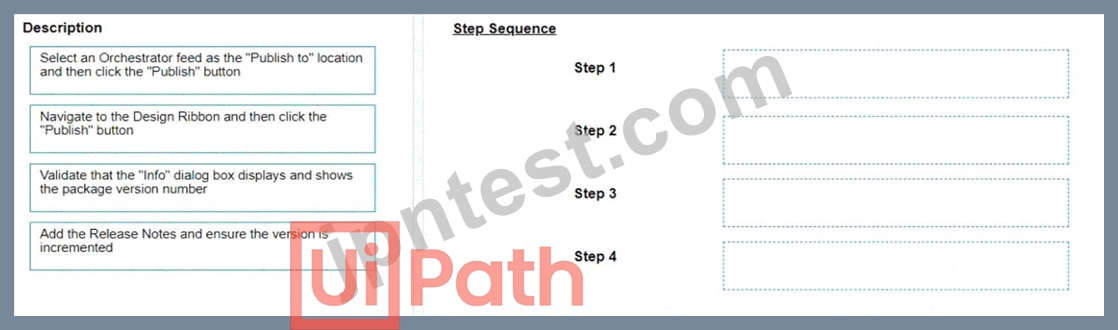
正解:
解説: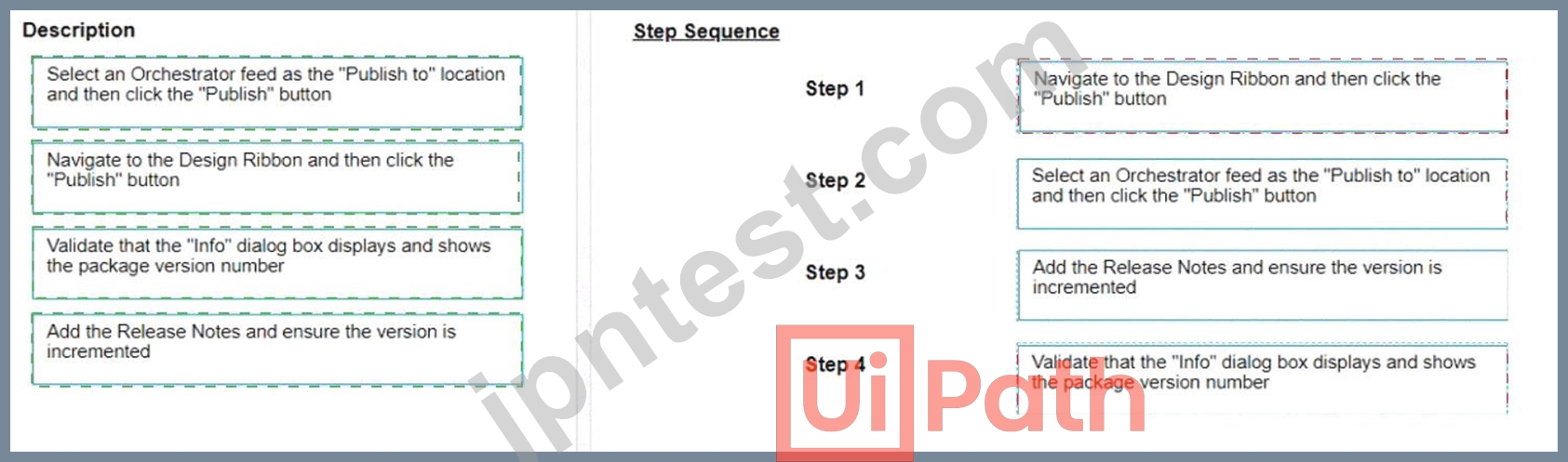
Explanation:
The recommended sequence of steps that should be performed to publish the package to Orchestrator 2021.10 is:
* Step 1 = Navigate to the Design Ribbon and then click the "Publish" button
* Step 2 = Select an Orchestrator feed as the "Publish to" location and then click the "Publish" button
* Step 3 = Add the Release Notes and ensure the version is incremented
* Step 4 = Validate that the "Info" dialog box displays and shows the package version number This sequence will ensure that the developer can publish the automation project to the Orchestrator feed of their choice, add some notes about the changes made, and verify that the package is successfully published with the correct version number.
https://docs.uipath.com/orchestrator/standalone/2021.10/user-guide/about-packages
質問 # 84
[テスト エクスプローラー] パネルのパーセンテージは何を表していますか?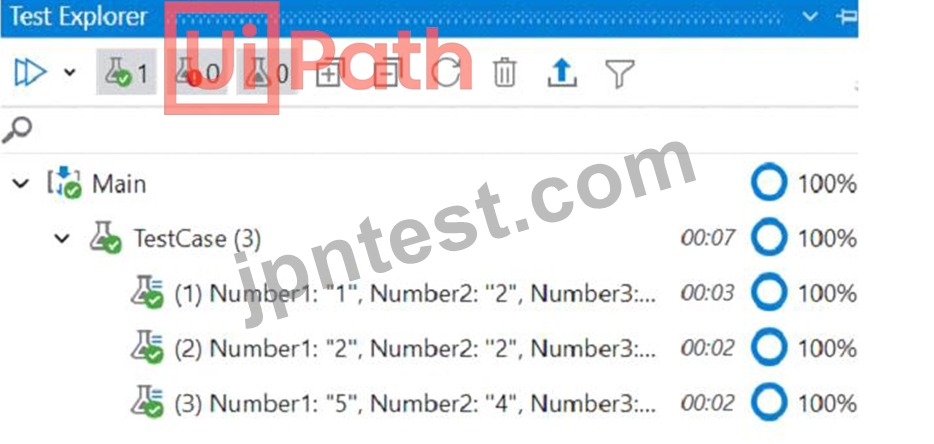
- A. カバレッジパーセント。
- B. 合格パーセント。
- C. コードの正確さのパーセント。
- D. 実行されたテスト データの割合。
正解:A
解説:
The percentages from the Test Explorer panel represent the coverage of the test cases, which is the ratio of the number of activities that are executed by the test cases to the total number of activities in the project. The higher the coverage, the more thorough the testing is. The coverage percentage is calculated for each test case, test set, and the entire project. You can view the coverage details in the Coverage sub-panel of the Test Explorer1.
References:
Test Explorer documentation from UiPath
質問 # 85
フィルター基準に基づいてフォームからすべての UI 要素を取得するには、開発者はどのアクティビティを利用する必要がありますか?
- A. 祖先の取得
- B. UI ツリーのエクスポート
- C. 子の検索
- D. 要素の検索
正解:C
解説:
The "Find Children" activity should be used to retrieve all UI elements from a form based on a filter criterion.
This activity can be used to find all UI elements that are children of a specified UI element, and it allows for filtering these children according to specified criteria. Therefore, the correct answer is D.
質問 # 86
数量値が 500 より大きい DataTable 変数内のすべての行を取得するには、どのアクティビティを使用できますか?
- A. 出力データテーブル
- B. データテーブルをフィルターする
- C. データテーブルを並べ替える
- D. ルックアップデータテーブル
正解:B
解説:
To filter rows in a DataTable based on a condition (e.g., Quantity > 500), the best activity to use is Filter Data Table.
Why is Option D Correct?
* Filter Data Table allows filtering rows based on specific conditions (e.g., Quantity > 500).
* It can be configured via UI settings or using expressions in the advanced filter options.
* The result is stored in a new or existing DataTable.
Example Usage in UiPath Studio:
* Drag the Filter Data Table activity into the workflow.
* Set Input DataTable = dtInput
* Set Output DataTable = dtFiltered
* Configure the filter condition:
vbnet
CopyEdit
Column: "Quantity"
Operator: "Greater than"
Value: 500
* Now, dtFiltered contains only rows where "Quantity" > 500.
Why Other Options Are Incorrect?
* A (Sort Data Table) #
* Sort Data Table only sorts data; it does not filter rows.
* B (Output Data Table) #
* Converts the DataTable into a string representation, used for display purposes, not filtering.
* C (Lookup Data Table) #
* Searches for specific values in a column but does not filter multiple rows.
質問 # 87
UiPath 統合サービスのコネクタ ビルダーでサポートされているメソッドは何ですか?
- A. 取得、ID による取得、投稿、配置、パッチ、削除
- B. 取得、投稿、配置、トレース
- C. 取得、ID による取得、配置、トレース、オプション
- D. 取得、投稿、配置、オプション
正解:A
解説:
Comprehensive and Detailed Explanation:
Connector Builder in the UiPath Integration Service allows developers to create custom API integrations with external applications. The supported HTTP methods include:
* GET - Retrieves data from a resource.
* GET BY ID - Retrieves a specific resource by its unique ID.
* POST - Sends new data to a resource (e.g., creating new records).
* PUT - Updates an existing resource by replacing it.
* PATCH - Partially updates an existing resource (only certain fields).
* DELETE - Removes a resource.
Why Other Options Are Incorrect?
* A (Get, Post, Put, Options):
* Missing "Get By Id", "Patch", and "Delete" - these are essential for API interactions.
* C (Get, Post, Put, Trace):
* "Trace" is not a supported method in UiPath Connector Builder.
* D (Get, Get By Id, Put, Trace, Options):
* Missing "Post", "Patch", and "Delete" - critical methods for API requests.
質問 # 88
UiPath REFramework プロジェクトでカスタム ログ フィールドを使用する主な目的は何ですか?
- A. 自動化プロセスに関連するログ メッセージに特定のコンテキスト情報を追加します。
- B. オーケストレーターに表示される、ログに記録されたコンテキスト データの表現を変更します。
- C. ログ メッセージとともに追加の変数を生成し、ワークフローの理解を強化します。
- D. 資格情報などの安全な詳細を含む、ログ メッセージ内のコンテキストに応じた洞察を維持するため。
正解:A
解説:
The Add Log Fields activity allows developers to create custom log fields that are added to the Robot Execution Logs. These custom log fields can be used to store and display additional information that is relevant to the automation process, such as transaction ID, invoice number, customer name, etc. The custom log fields can help to improve the traceability and analysis of the automation process, as well as to filter and group the logs based on specific criteria. (UiPath Automation Developer study guide) References:
Add Log Fields
Logging and Log Levels
質問 # 89
開発者は、以下に示すワークフローで使用される 3 つの変数を作成しました。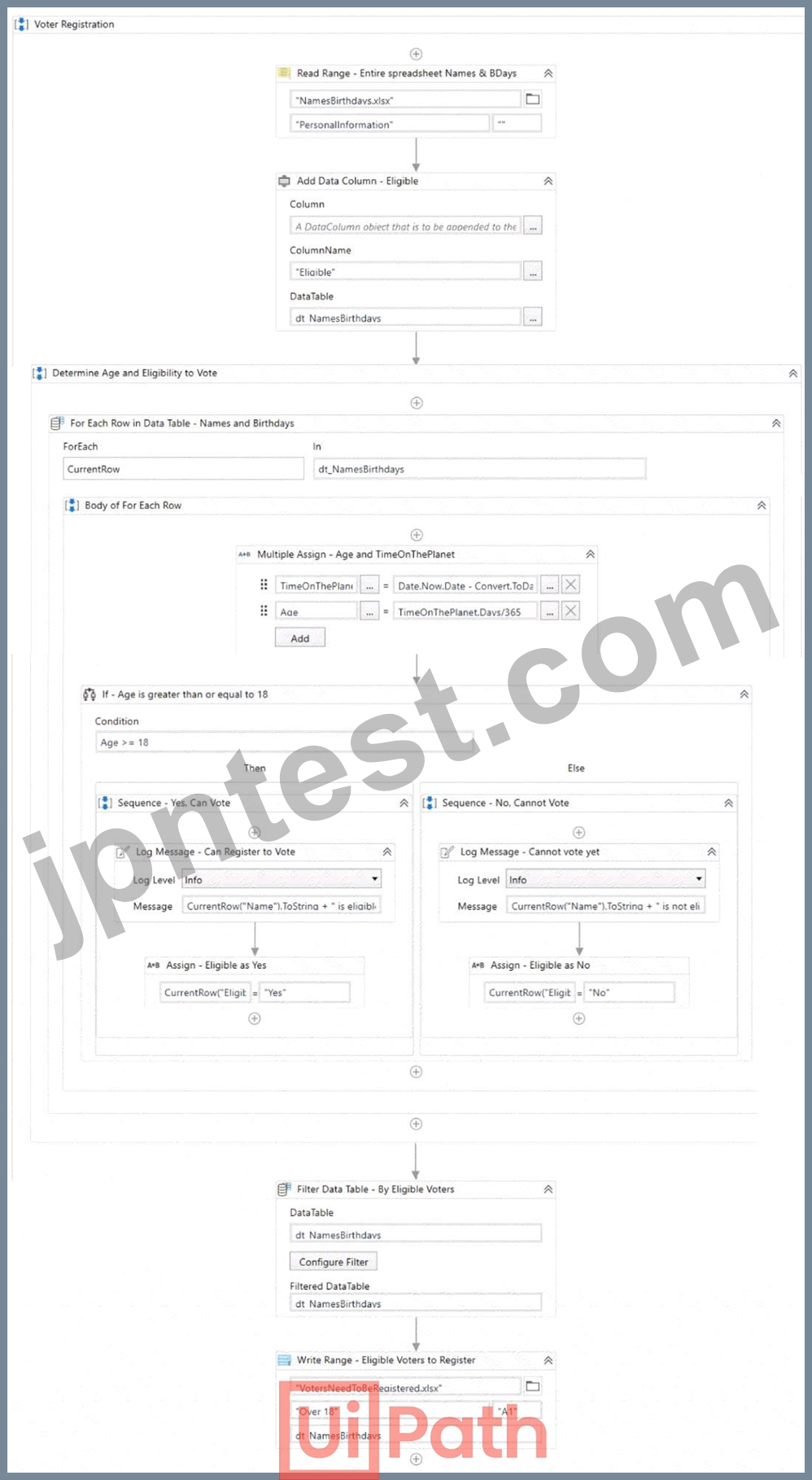
手順: ベスト プラクティスに基づいて、次の図に示すドロップダウン リストから各変数タイプの正しいスコープを選択します。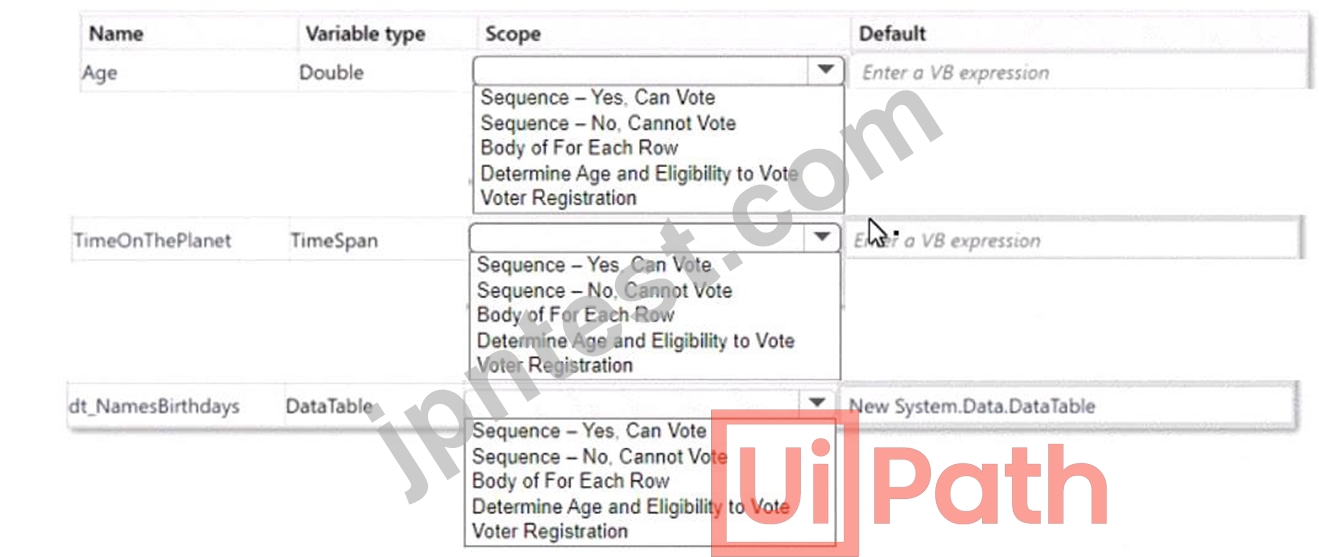
正解:
解説: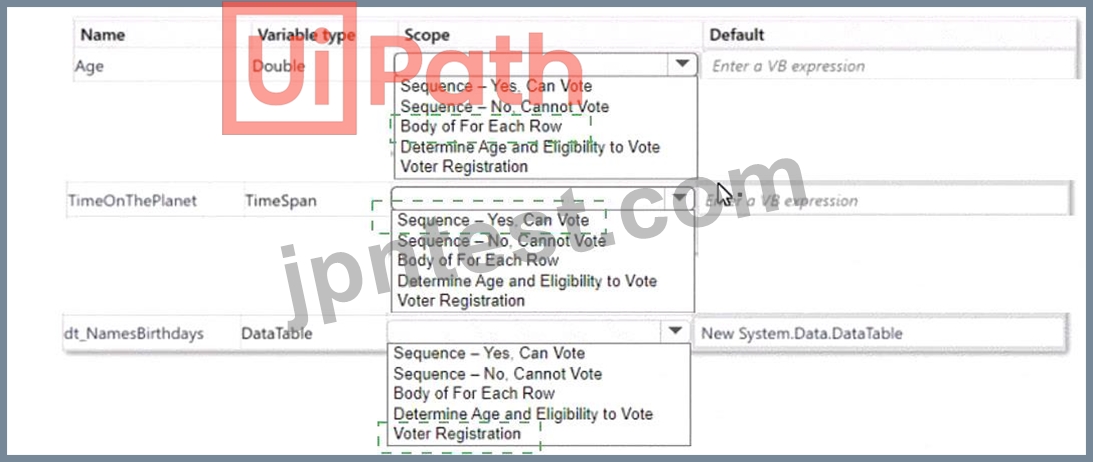
Explanation:
Name = Age Variable type = Double Scope = Body of For Each Row
Name = TimeonThePlanet Variable type = Time Span Scope = Sequence - Yes, Can Vote Name = dt_NamesBirthdays Variable type = DataTable Scope = Voter Registration The reason for choosing these scopes is to keep the variables in the innermost scope where they are used and to avoid unnecessary clutter and duplication in the Variables panel. You can learn more about variable scope in UiPath from the following sources:
* Variable scope - Studio - UiPath Community Forum
* How Variable Scope Works in UiPath - Video Tutorials - UiPath Community Forum
* How to pass variables as UiPath arguments example - TheServerSide
* Best Practices: Select Variables scope - UiPath Community Forum
質問 # 90
次の引数リストがあるとします。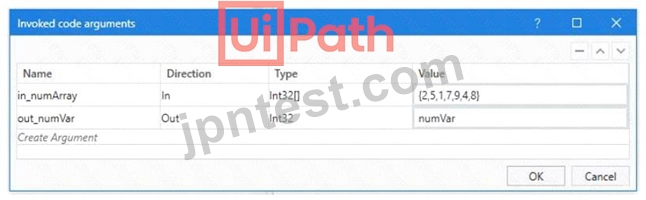
そして次のコード: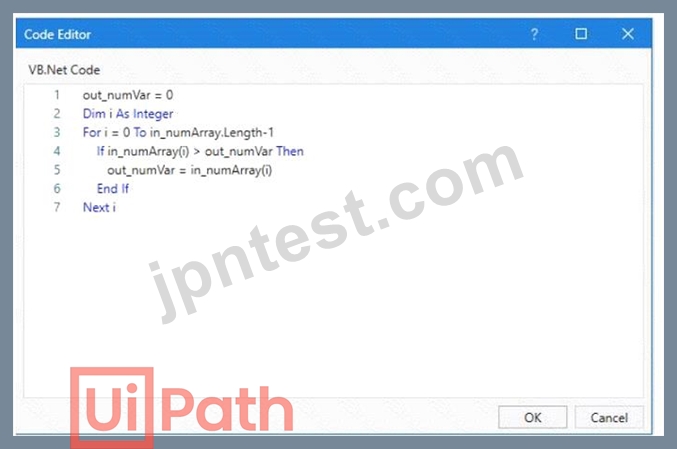
以下のシーケンスの最後に出力パネルに表示される値は何ですか: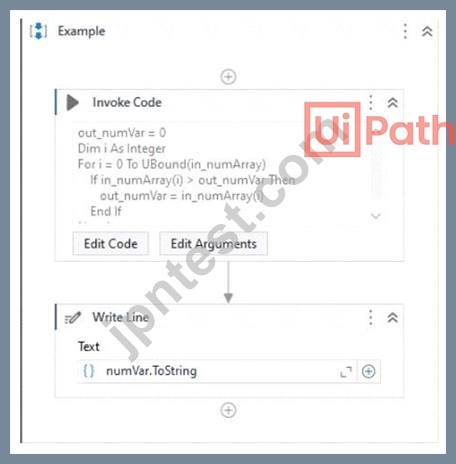
- A. 0
- B. 1
- C. 2
- D. 3
正解:B
解説:
The code in the Invoke Code activity is looping through an array of integers and checking if the current value is greater than the previous value. If it is, the current value is stored in the output variable. Since the last value in the array is 9, this will be the final value of the output variable. (UiPath Studio - Invoke Code - UiPath Academy) References:
Studio - Invoke Code - UiPath Documentation Portal
UiPath Studio - Invoke Code - UiPath Academy
質問 # 91
次のテーブルは、「dt」という変数に格納されます。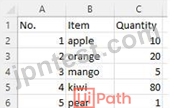
Assign アクティビティを実行した後の qty 変数の値はどうなりますか?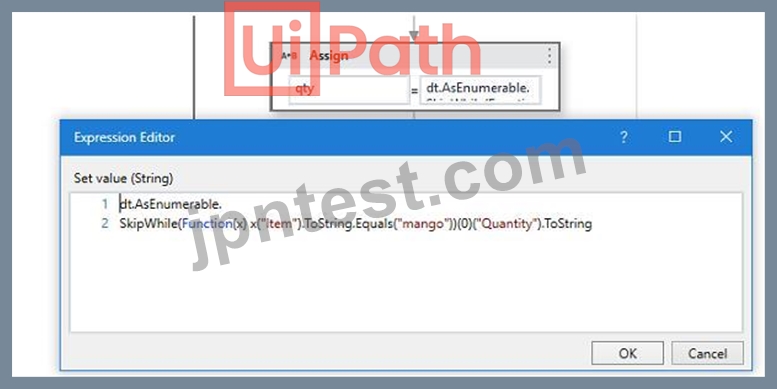
- A. null
- B. 0
- C. 1
- D. 2
正解:D
解説:
Explanation
The Assign activity is used to assign a value to a variable. In this case, the variable is "qty". The value of the variable will be 80 after executing the Assign activity because the expression in the Assign activity is
"dt.AsEnumerable().Where(Function(x) x("Item").ToString.Equals("mango")).Select(Function(y) y("Quantity")).ToString". This expression is filtering the data table "dt" for rows where the "Item" column is equal to "mango" and then selecting the "Quantity" column from those rows. Since there is only one row in the data table where "Item" is equal to "mango", the value of the "Quantity" column in that row is 80. (UiPath Studio documentation) References:: [Assign - UiPath Activities].
質問 # 92
Windows 互換性をサポートするすべてのアクティビティのリストはどこで確認できますか?
- A. 変換されたプロジェクトの設定内。
- B. Windows-Legacy プロジェクト構成内。
- C. 公式フィードドキュメント内。
- D. アクティビティ ガイド内。
正解:D
解説:
UiPath has introduced different compatibility modes for activities:
* Windows (modern, recommended).
* Windows-Legacy (older compatibility mode).
* Cross-Platform (used for Cloud and Linux environments).
* Why Option B is Correct:
* The Activities Guide is the official UiPath documentation where all activities and their compatibility are listed.
* It provides detailed descriptions, compatibility information, and usage scenarios.
* Why Other Options Are Incorrect:
* A: # Incorrect - Project settings only show the compatibility mode of the current project, not a list of supported activities.
* C: # Incorrect - Official feed documentation lists packages, but not specific activity compatibility.
* D: # Incorrect - Windows-Legacy is a deprecated mode and does not provide a list of Windows-compatible activities.
References:
# UiPath Official Documentation - Activities Guide# UiPath Studio Compatibility Modes
質問 # 93
開発者は、完了したトランザクションごとに異なる従業員 ID を含む電子メールがプロセス所有者に送信されるプロジェクトを設計しています。プロセス所有者は 1 年に 1 回だけ変更されます。
Orchestrator キューとアセットのどちらの値を指定する必要がありますか?
- A. プロセス所有者の電子メールをキュー アイテムのフィールドとして、従業員 ID を Orchestrator アセットとして処理します。
- B. プロセス所有者の電子メールをキュー アイテムのフィールドとして、従業員 ID をキュー アイテムのフィールドとして処理します。
- C. プロセス所有者の電子メールを Orchestrator アセットとして、従業員 ID を Orchestrator アセットとして処理します。
- D. プロセス所有者の電子メールをオーケストレーター アセットとして、従業員 ID をキュー アイテムのフィールドとして処理します。
正解:D
解説:
* Process Owner Email should be stored as an Orchestrator Asset because it changes infrequently (once per year). Assets are best suited for static or rarely changing values.
* Employee ID should be stored in the Queue Item because each transaction is unique and needs to process different employee data.
Orchestrator Assets store global variables, while Queues manage dynamic data that changes per transaction.
# Reference: UiPath Documentation - Assets and Queues
質問 # 94
開発者は、次の図に示すように、データテーブル dt_Users を作成しました。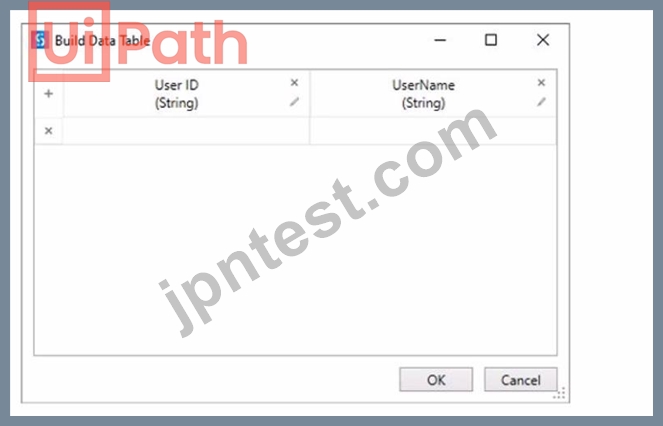
データテーブル変数を設定した後、開発者は dt_Users の各ユーザー ID を List<String> 変数 Users_List に割り当てたいと考えています。これを実現するために、開発者は、For Each Row アクティビティ内で Add To Collection アクティビティを使用することを計画しています。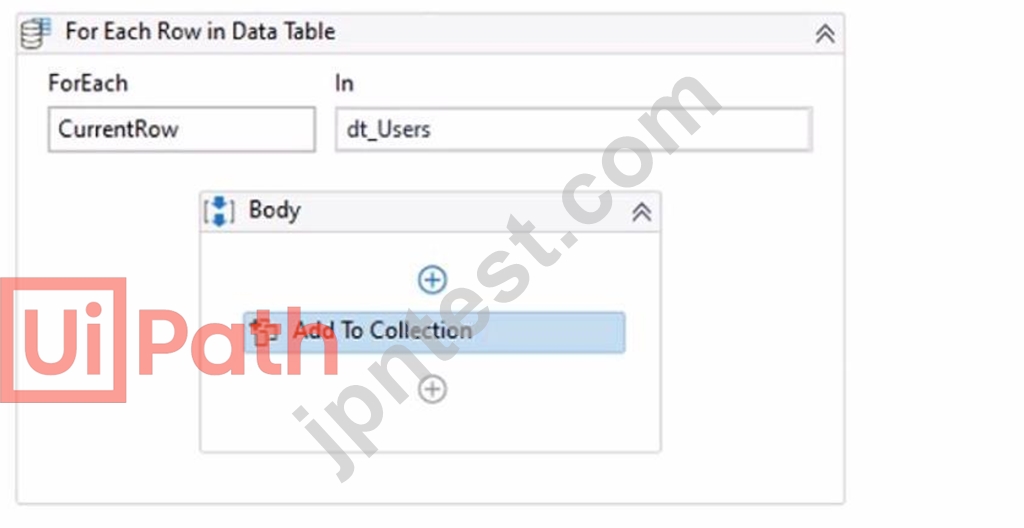
「コレクションに追加」アクティビティの「項目」プロパティはどのように構成すればよいですか?
- A. dtJJsers(O) ToString
- B. CurrentRow(0)ToStnng
- C. dt_Users(1) ToString
- D. CurrentRow(1) ToString
正解:B
解説:
Explanation
To assign each User ID in dt_Users to a List<String> variable Users_List, the Item property of the Add To Collection activity should be configured as:
CurrentRow(0).ToString
This expression accesses the value of the first column (index 0) in the current row of the dt_Users datatable using the CurrentRow variable. The CurrentRow variable is a DataRow object that represents the row that is being iterated in the For Each Row activity. The expression uses the ToString method to convert the value of the User ID column to a string type. The expression returns the User ID value as a string, which is then added to the Users_List variable by the Add To Collection activity1. For example, if the dt_Users datatable has the following values:
User ID
Name
101
John
102
Mary
103
Bob
Then the expression CurrentRow(0).ToString will return 101, 102, and 103 as the User ID values in each iteration of the For Each Row activity, and these values will be added to the Users_List variable.
References: Add To Collection and For Each Row from UiPath documentation.
質問 # 95
あなたのチームは、Windows、Mac、Linux などのさまざまなシステムで実行されるクロスプラットフォームの自動化を構築したいと考えています。Studio Web はこの要件をどのようにサポートしますか?
- A. Studio Web 自動化は、ユーザー向けにプロビジョニングされ、Windows、Mac、または Linux ロボットで実行できるサーバーレス ロボット上で実行されます。
- B. Studio Web は Linux および Mac システムでの自動化のみをサポートし、Windows システムではサポートしません。
- C. Studio Web 自動化はクラウドベースですが、Windows ロボットでのみ実行する必要があります。
- D. Studio Web オートメーションでは、異なるプラットフォームで実行する前に、各オペレーティング システムに特定の Windows ロボットをインストールする必要があります。
正解:A
解説:
UiPath Studio Web is a cloud-based automation tool that enables cross-platform automation without requiring local installations.
Why is Option C Correct?
* Studio Web automations run on "serverless robots" that are automatically provisioned by UiPath.
* These robots can execute on Windows, Mac, or Linux, making them platform-independent.
* No need for manual robot installation on each machine.
Why Other Options Are Incorrect?
* A (Must run exclusively on Windows robots) #
* Incorrect. Studio Web supports Mac, Linux, and Windows.
* B (Only supports Linux and Mac, not Windows) #
* Incorrect. Studio Web is platform-independent.
* D (Requires a Windows robot on each system) #
* Incorrect. Serverless robots handle execution automatically.
References:
* UiPath Studio Web Documentation
* UiPath Forum - Cross-Platform Automation with Studio Web
質問 # 96
UiPath Studio 2021 10 に新しいアクティビティ パッケージをインストールする正しい手順は何ですか?
説明書:
左側にある説明をドラッグし、右側にある適切なステップにドロップします。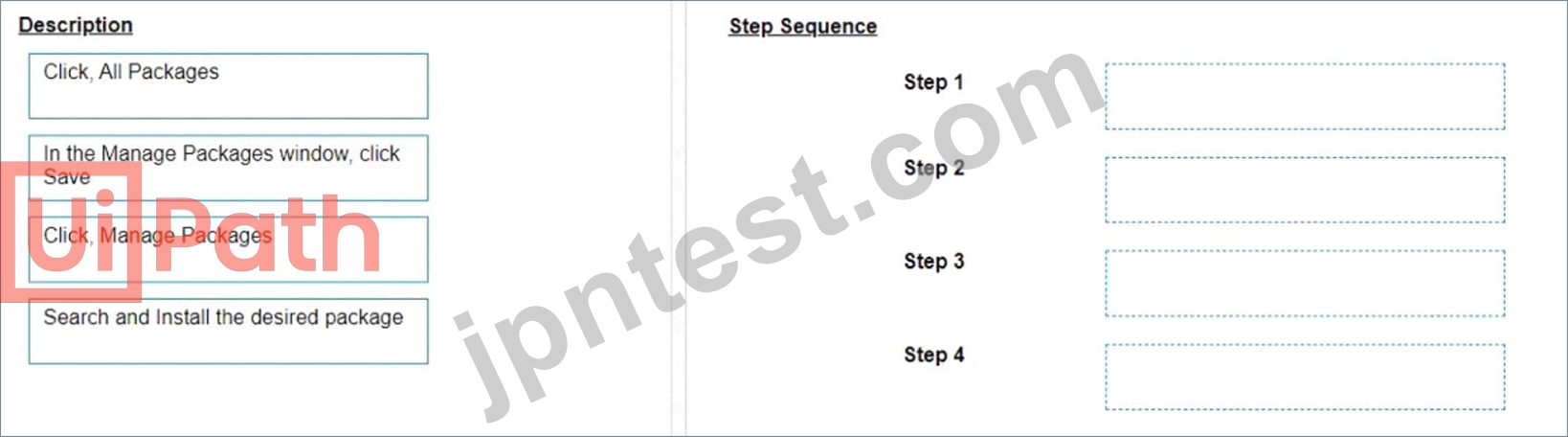
正解:
解説: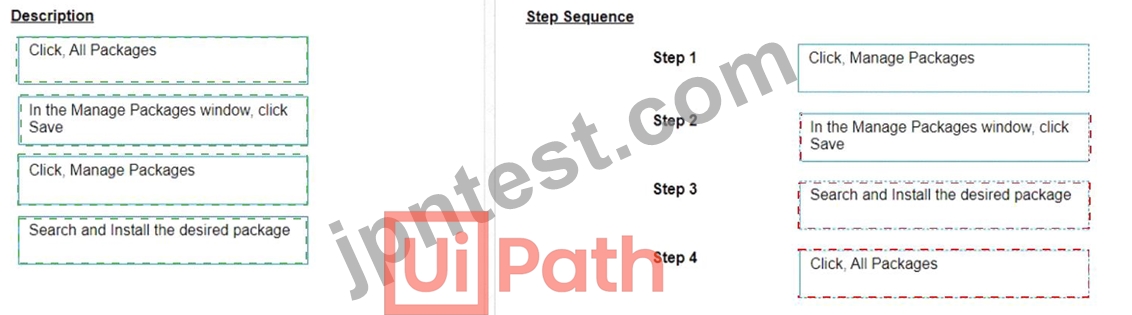
Explanation
Click, Manage Packages
In the Manage Packages window, click Save
Search and Install the desired package
Click, All Packages
The correct sequence of steps to install a new Activities package in UiPath Studio 2021 10 is:
Click Manage Packages in the ribbon.
In the Manage Packages window, click All Packages in the left panel.
Search for the desired package in the search box and select it from the list.
Click Install and then Save to complete the installation.
Comprehensive and Detailed Explanation: To install a new Activities package in UiPath Studio 2021 10, you need to follow these steps:
Click Manage Packages in the ribbon. This will open the Manage Packages window, where you can browse, install, update, or remove packages from your project.
In the Manage Packages window, click All Packages in the left panel. This will display all the available packages from the official UiPath feed, as well as any other feeds that you have configured in the Settings tab.
Search for the desired package in the search box and select it from the list. You can also filter the packages by category, compatibility, or source. You can see the package details, such as version, description, dependencies, and release notes, in the right panel.
Click Install and then Save to complete the installation. The package will be added to your project dependencies and downloaded to the local cache. You can also choose to install a specific version of the package by clicking on the version number and selecting from the drop-down list.
References:
Managing Packages
Installing and Updating Packages
質問 # 97
開発者は、Web フォームに詳細を入力するために Type into アクティビティを使用しています。開発者は、テキスト フィールドのセレクターが信頼できないことに気づきました。展示に示されているセレクターは現在、実行時にテキスト ラベルとテキスト フィールドの両方をターゲットにしています。セレクターが実行時に名テキスト フィールドのみをターゲットにするには、追加のプロパティを 1 つだけクリックする必要があります。
手順: 次の Ul Explorer の「選択されていない項目」列にある、名テキスト フィールドに使用する追加のプロパティ チェックボックスをクリックします。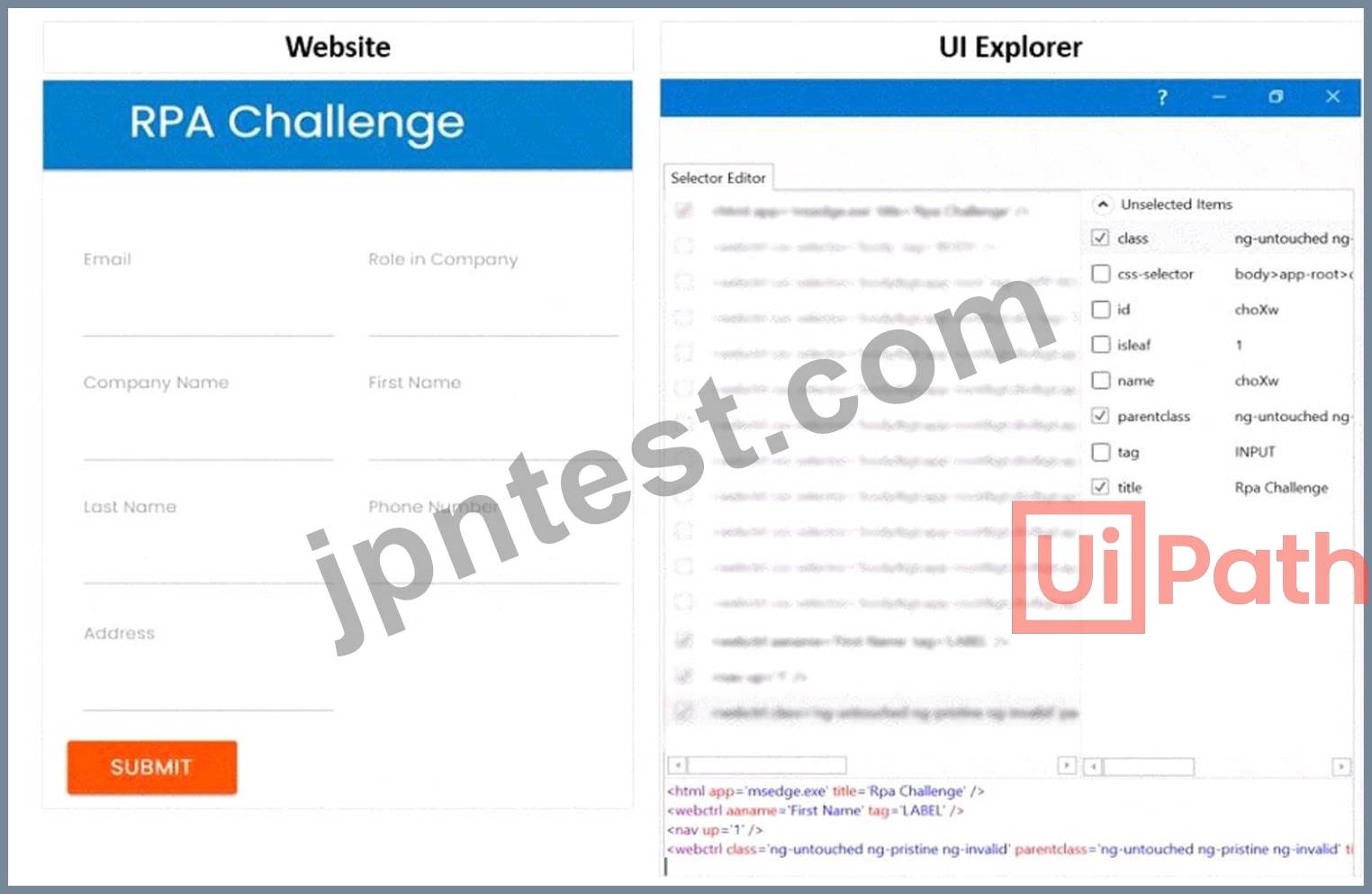
正解:
解説: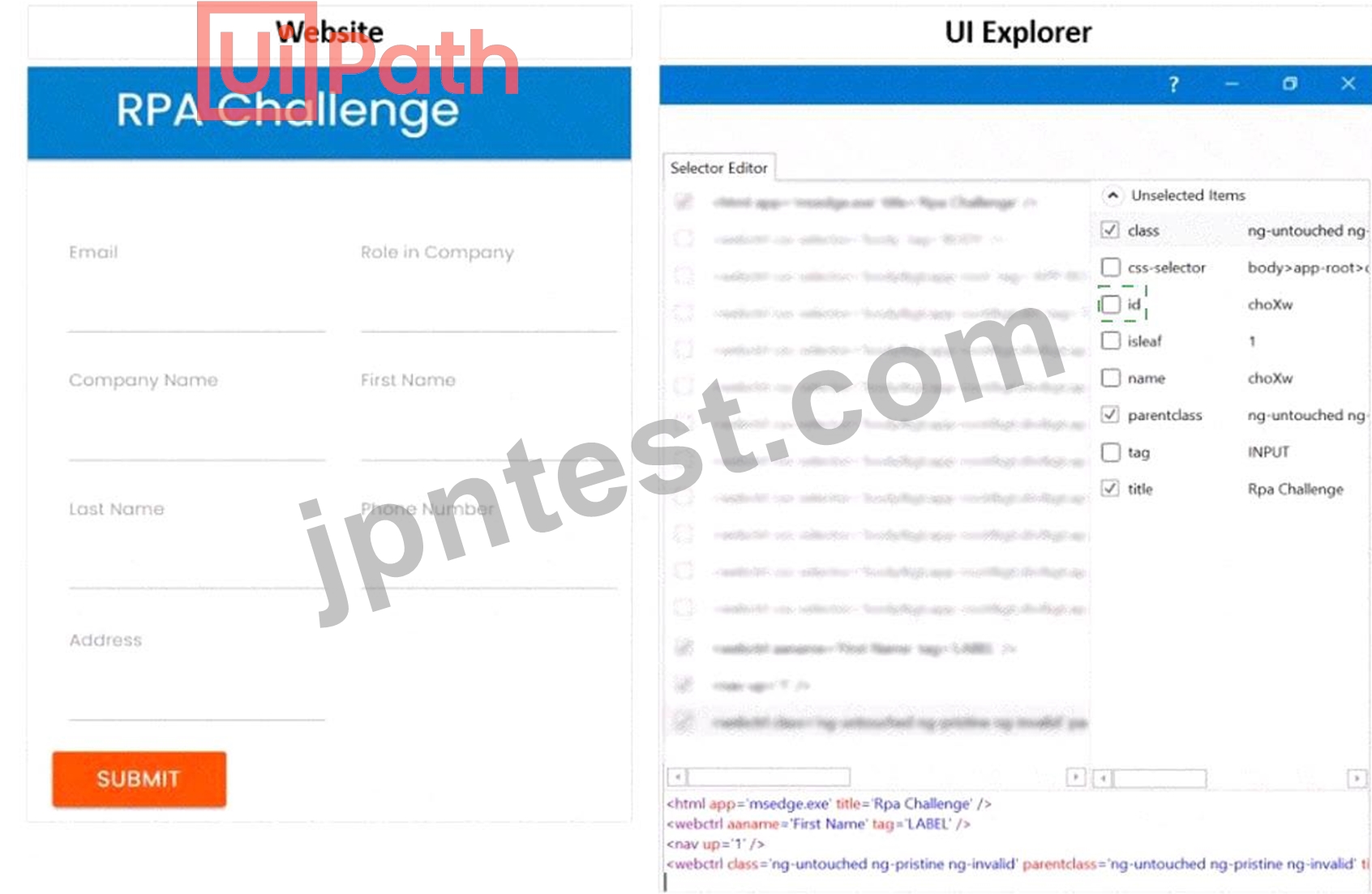
Explanation:
To ensure the selector targets only the First Name text field at runtime, you need to click the additional Property checkbox for ID in the UI Explorer Unselected Items column. This will add the ID attribute to the selector, which is a unique identifier for the text field element. The ID attribute has the value "firstname" for the First Name text field, as shown in the image. This will make the selector more reliable and specific, and avoid targeting the text label or other elements with the same class or tag.
https://docs.uipath.com/de/studio/standalone/2021.10/user-guide/uipath-explorer
質問 # 98
UiPath Studio にカスタム アクティビティ パッケージをインストールする有効な方法は何ですか?
- A. UiPath Studio の [アクティビティ] パネルでアクティビティをダブルクリックします。
- B. パッケージ マネージャーに移動し、[すべてのパッケージ] をクリックし、パッケージを検索して、[インストール] をクリックします。
- C. 外部ソースからパッケージをダウンロードし、UiPath Studio にドラッグします。
- D. UiPath Marketplace でパッケージを検索し、手動でインストールします。
正解:B
解説:
A valid way to install a custom activity package in UiPath Studio is to go to the Package Manager, click on
"All Packages," search for the package you want to install, and click "Install". This allows you to add custom activities to your project from the managed packages available.
質問 # 99
......
心強いUiPath-ADAv1日本語のPDF問題集はUiPath-ADAv1日本語問題:https://www.jpntest.com/shiken/UiPath-ADAv1-JPN-mondaishu